Unlock Your Reach: A Comprehensive Guide to the Restream App for Live Streaming

Live streaming is always changing, and creators need good tools to keep up. If you want your live videos to really connect with people, they need to look good. Luckily, there's a way to make great live content easily. Restream is a popular choice for live video that helps you make quality content, reach more people, and stand out. You can go live straight from your web browser, schedule videos to go live later, and stream to places like YouTube, Facebook, and Twitch all at once. This guide will show you why the restream app is a good choice for your live streams.
Key Takeaways
- The restream app lets you stream live video to multiple platforms at the same time, reaching a wider audience.
- You can use Restream Studio directly in your web browser for easy, professional-looking streams without extra software.
- The restream app allows you to schedule pre-recorded videos to go live automatically, offering flexibility.
- Restream provides tools like Restream Chat to manage audience comments from all platforms in one place and analytics to track performance.
- Restream offers a free plan with basic features and paid options for more channels, guests, and advanced tools, plus 24/7 support for paid users.
Getting Started With The Restream App
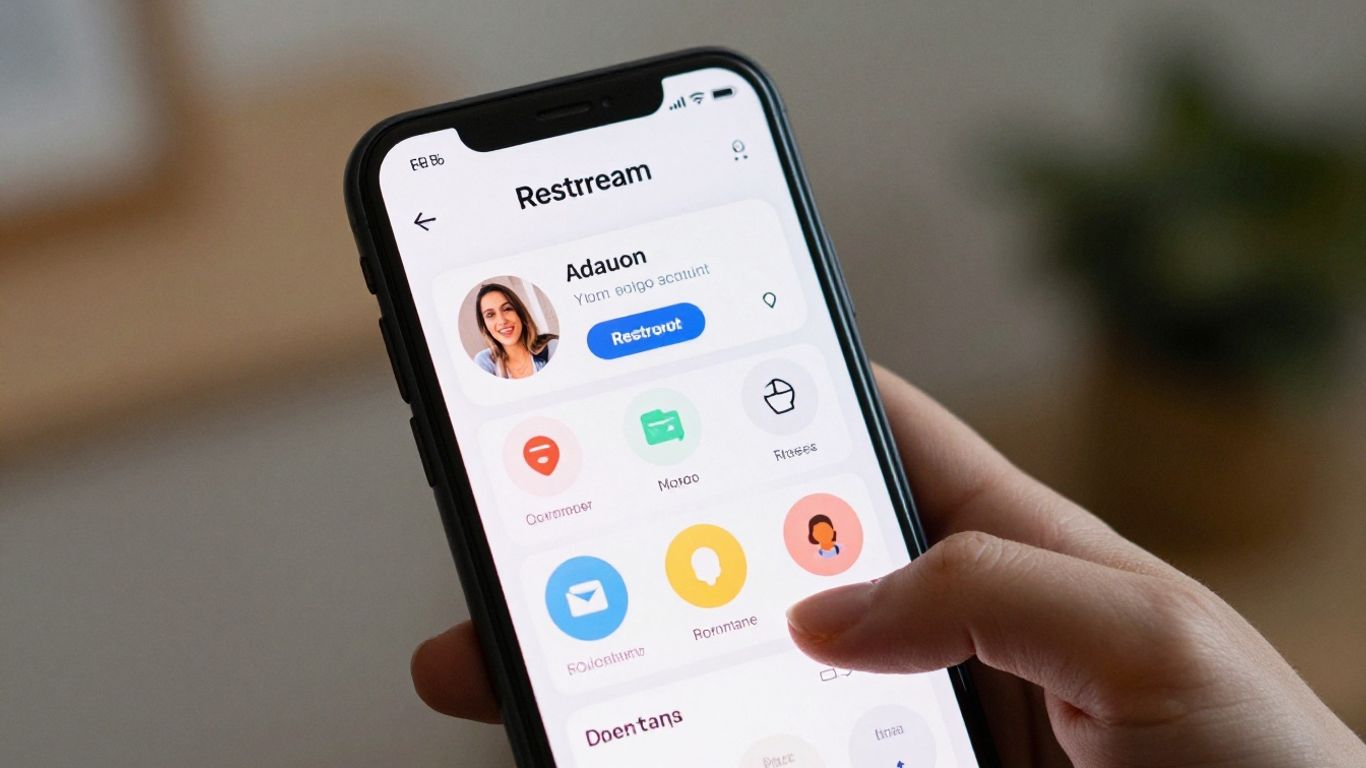
So, you're ready to jump into live streaming and want to know how to get going with Restream? It's actually pretty straightforward. Think of Restream as your central hub for broadcasting your content to all the places your audience hangs out online. You don't need a fancy setup or a degree in computer science to make it work.
Understanding The Restream App's Core Functionality
At its heart, Restream is all about making it simple to send your live video out to multiple platforms at once. Instead of streaming separately to YouTube, Facebook, Twitch, and wherever else, you do it once through Restream, and it handles sending it everywhere. This means you can reach more people without doing more work. It also pulls all your chat messages from these different platforms into one place, so you can see and respond to everyone without constantly switching windows. This is a big deal for keeping your audience engaged.
Navigating The Restream App Interface
When you first log in, the Restream interface might seem like a lot, but it's designed to be user-friendly. You'll see a main dashboard that gives you an overview of your account. The key areas to get familiar with are:
- Destinations: This is where you connect all the social media accounts and platforms you want to stream to. You can add quite a few, so pick your favorites.
- Studio: This is Restream's built-in broadcasting tool. You can stream directly from your browser using this, adding graphics, inviting guests, and managing your stream's look.
- Chat: Here's where all those messages from your different streams come together. It's a simple way to keep track of conversations.
- Schedule: If you want to plan future streams or upload pre-recorded videos to go live later, this is the spot.
The goal is to make your streaming process smoother. By centralizing your broadcasts and audience interactions, Restream cuts down on the technical headaches so you can focus on your content.
Setting Up Your First Restream Account
Getting your account set up is the first real step. You'll need to sign up for a Restream account, which you can do directly on their website. Once you're in, the most important thing you'll do initially is connect your streaming destinations. This involves authorizing Restream to post to your chosen platforms, like your YouTube channel or Facebook page. It's a quick process that usually involves logging into those platforms through Restream's secure connection. You can even stream without dedicated software if you choose to use Restream's web browser option.
Here’s a quick rundown of the initial setup:
- Sign Up: Create your Restream account.
- Add Destinations: Connect the social media accounts and platforms you want to stream to.
- Explore Studio: Take a peek at the Restream Studio to see what it can do.
- Download Chat App (Optional): If you want a dedicated window for chat, you can grab the Restream chat desktop app and explore its settings.
Maximizing Your Reach With Restream Multistreaming
So, you've got your stream ready to go, but you're wondering how to get the most eyes on it. That's where Restream's multistreaming feature really shines. Instead of picking just one platform, you can broadcast your live content to multiple places all at once. Think about it: your audience might be hanging out on YouTube, but your potential new fans could be scrolling through Facebook or checking out LinkedIn. Why limit yourself?
Broadcasting To Multiple Platforms Simultaneously
This is the core idea behind Restream's multistreaming. You set up your stream once, and Restream sends it out to all the platforms you've connected. It's like having a TV show that airs on every channel at the same time. This means you're not just reaching your existing followers on one platform, but also tapping into the audiences of others. It's a smart way to grow your presence without having to manage separate streams for each network. You can stream to over 30 different channels, plus even your own website, which is pretty neat.
Integrating The Restream App With Streaming Software
If you're already using streaming software like OBS Studio, integrating it with Restream is straightforward. You'll typically set up Restream as your output destination within OBS. This means OBS handles all the video and audio processing, and then Restream takes that feed and distributes it. It's a flexible setup that lets you use the powerful features of your preferred software while still benefiting from Restream's multistreaming capabilities. You can even use Restream's RTMP Pull links to bring your Restream feed into other software, almost like adding another camera source.
Choosing Your Restream Destinations
When you set up multistreaming, you get to pick exactly where your stream goes. The free plan lets you send your stream to two platforms, which is a good starting point. As you upgrade, you can add more destinations. This includes popular spots like YouTube, Facebook, Twitch, and LinkedIn. You can also stream to specific places like Facebook groups or pages, which might require a paid plan. It's all about sending your content where your audience is most likely to see it.
The beauty of multistreaming is meeting your audience where they already are. Instead of making them come to you on one specific platform, you go to them across all the places they frequent online.
Here's a quick look at how many platforms you can stream to:
| Plan Type | Max Platforms |
|---|---|
| Free | 2 |
| Standard | Up to 10 |
| Professional | Up to 20 |
| Business | 30+ |
This allows you to tailor your reach based on your needs and budget. For instance, maybe you want to hit YouTube and Twitch with the free plan. Later, you might decide to add Facebook Pages and LinkedIn with a paid tier. It’s about strategic placement to maximize your visibility.
Enhancing Your Streams With Restream Studio
Leveraging Browser-Based Streaming
Restream Studio is a really neat tool because you don't need to install any software on your computer to use it. It all happens right in your web browser. This makes it super easy to jump on a stream whenever inspiration strikes, without worrying about updates or compatibility issues. It's a straightforward way to get your content out there, directly from your browser, simplifying the whole process of broadcasting. You can check out more about this browser-based solution.
Adding Visual Appeal With Graphics And Overlays
Want your stream to look more professional? Restream Studio lets you add graphics and logos to make it yours. You can upload your own branding or pick from what Restream offers. Think about adding text overlays for guest names, important announcements, or even viewer comments. A scrolling ticker can share real-time updates. You can even use virtual backgrounds if your room isn't exactly studio-ready. Plus, adding some royalty-free background music can set the mood without any copyright worries.
Incorporating Guest Participants Into Your Stream
Bringing guests onto your stream is a great way to connect with more people. Restream Studio makes it simple. You just send a link to your guest, and they can join your stream right from their browser – no downloads or accounts needed for them. This makes interviews or co-hosted shows a breeze. You can even integrate with other tools like OBS or Zoom to bring in different video feeds, allowing for more complex setups. This integration lets you customize and improve your streams by pulling in feeds from other streaming software.
Remember, the goal is to make your stream look good and keep your audience engaged. Small touches like consistent branding and clear text can make a big difference in how professional your broadcast appears.
Advanced Features Of The Restream App
Restream isn't just about sending your stream to multiple places at once. There are some really neat tools built-in that can make your streams more professional and easier to manage. Let's look at a few.
Utilizing Pre-Recorded Streams For Flexibility
Sometimes, going live can be a bit much. Maybe you're in a different time zone than most of your audience, or perhaps you just want to make sure everything is perfect before it goes out. Restream lets you upload pre-recorded videos and broadcast them as if they were live. This is a smart move because people tend to watch live videos longer than on-demand ones. Plus, you can schedule these pre-recorded streams to go out at different times, reaching viewers in various time zones without you having to be there live each time. It also means you can edit out any mistakes and relax while your content is being broadcast.
Managing Audience Interaction With Restream Chat
Keeping track of comments from YouTube, Facebook, and other platforms can get messy fast. Restream Chat pulls all those comments into one single window. This means you can see what everyone is saying, no matter where they're watching from, and respond without constantly switching between tabs. It really helps you feel connected to your audience.
Analyzing Performance With Restream Analytics
How do you know if your streams are actually doing well? Restream provides analytics that give you a look at how your streams are performing. You can see things like how many people watched, how long they stayed, and where they came from. This information is super helpful for figuring out what's working and what's not, so you can make your future streams even better. It's like having a report card for your live broadcasts.
Understanding your stream's performance is key to growth. Restream's built-in analytics give you the data you need to make informed decisions about your content and strategy, helping you connect more effectively with your viewers.
Exploring Restream's Subscription Tiers
Restream has a plan for pretty much everyone, whether you're just starting out or you've been streaming for ages. It's good to know what you're getting into before you commit, right? They've got a free option, and then a few paid tiers that add more features as you go.
Understanding The Restream Free Plan
The free plan is a solid place to start. You can stream to two different platforms at once, which is pretty neat. It also lets you bring in guests and add some basic graphics to make your stream look a bit more professional. You can even stream short pre-recorded videos if you need a break or want to plan ahead. It’s a good way to test the waters and see if Restream is for you without spending any money.
Comparing Paid Plans For Enhanced Features
If you find yourself needing more, Restream offers several paid plans. The Standard plan bumps up the number of platforms you can stream to and allows for more guests. You can also start using custom graphics and stream longer pre-recorded videos. For teams, the Professional plan is where it's at. It opens up even more channels, gives you video storage, and lets you add teammates to your account. These plans are designed to grow with your streaming needs.
Here's a quick look at what some of the paid plans might offer:
| Feature | Standard | Professional |
|---|---|---|
| Max Platforms | 5 | 10 |
| Max Guests | 6 | 9 |
| Custom Graphics | Yes | Yes |
| Pre-recorded Videos | Longer | Longer |
| Team Members | 1 | 3 |
Remember to check the official Restream pricing page for the most up-to-date details on features and costs, as these can change.
Enterprise Solutions For Large Organizations
For bigger companies or organizations with complex streaming needs, Restream has Enterprise solutions. These plans are built for high-volume streaming, allowing for over 10 channels, parallel live events, and fail-safe stream backups. They also offer features like single sign-on, dedicated account management, and custom billing, which are super helpful for managing large-scale operations. If you're running a business that relies heavily on live video, these advanced options are worth looking into. It's all about getting the right tools for the job, and Restream seems to have a tier for most scenarios, similar to how other streaming software compares in terms of pricing and features.
Troubleshooting And Support For Restream Users
Sometimes, things just don't go as planned when you're live streaming. It's a bit like trying to assemble furniture without the instructions – frustrating, but usually fixable. Restream knows this, and they've put some systems in place to help you out when you hit a snag.
Accessing 24/7 Customer Support
If you run into a problem, the first thing you'll want to know is how to get help. Restream offers support around the clock, which is pretty handy since live streams can happen at any hour. You can usually find the support options right within the app itself. Look for a 'Help' or 'Support' section in the menu. From there, you can often submit a ticket or start a live chat. Getting quick answers can save your stream from disaster.
Common Issues And Solutions With The Restream App
Most streaming hiccups fall into a few common categories. Here are some you might encounter and how to tackle them:
- Connection Problems: This is a big one. If your stream is choppy or dropping, check your internet connection first. A wired connection is almost always more stable than Wi-Fi. Sometimes, simply restarting your router can fix things.
- Platform Integration Issues: If Restream isn't connecting to one of your chosen streaming platforms (like YouTube or Facebook), try disconnecting and reconnecting that specific platform within your Restream account settings. Make sure you're logging in with the correct account.
- Audio/Video Sync Problems: If your audio and video aren't lining up, check your input devices in Restream Studio or your streaming software. Sometimes, a specific camera or microphone might cause a delay. You might need to adjust settings or try a different device.
- Restream Studio Glitches: If Restream Studio itself is acting up, try clearing your browser's cache and cookies. Sometimes, a simple browser refresh can do the trick. If you're using browser extensions, try disabling them temporarily to see if they're causing interference.
Remember that Restream is a browser-based tool for many functions. Keeping your web browser updated to the latest version is a good habit to get into. Outdated browsers can sometimes cause unexpected issues with web applications.
Best Practices For A Seamless Streaming Experience
Preventing problems is often easier than fixing them. Here are a few things to keep in mind:
- Test Before You Go Live: Always do a test stream, even if it's just for a minute or two, before your main event. Check your audio, video, and connection to all platforms.
- Keep Software Updated: Make sure your operating system, web browser, and any streaming software you use (like OBS) are up-to-date. Updates often include bug fixes that can prevent problems.
- Monitor Your Stream: Keep an eye on your Restream dashboard while you're live. Restream provides tools to monitor your stream's health, so you can catch issues early. If you're having trouble with Discord integration, there are guides available to help resolve common technical issues.
- Understand Your Plan Limits: Be aware of what your current Restream subscription allows. Exceeding limits on bandwidth or features can sometimes lead to unexpected performance drops.
Wrapping It Up
So, that’s the rundown on Restream. It really seems like a solid tool if you’re looking to get your live videos out to more people without a ton of hassle. Whether you’re just starting out or you’ve been streaming for a while, Restream offers ways to make your broadcasts look good and reach a bigger audience. They’ve got options for different budgets, including a free plan, and their support is there if you get stuck. It’s definitely worth checking out if you want to simplify your streaming setup and connect with more viewers across different platforms.
Frequently Asked Questions
What exactly is Restream and what does it do?
Think of Restream as a super helpful tool for anyone who wants to share live videos. It lets you create awesome live streams and send them out to lots of different places at the same time, like YouTube, Facebook, and Twitch. You can even do it right from your web browser, so no complicated setups needed!
Can I use Restream for free?
Yes, you absolutely can! Restream offers a free plan that gives you access to many cool features. If you want even more advanced tools, they also have paid plans that offer extra benefits for your streams.
How do I start using Restream?
Getting started is pretty simple. First, create a Restream account. Then, connect the social media or streaming platforms you want to broadcast to, like your YouTube or Facebook accounts. Once that's done, you're ready to start your live stream!
What is Restream Studio?
Restream Studio is like your virtual TV studio that works right in your web browser. It makes your live streams look professional with features like adding graphics, text overlays, and even inviting guests to join your broadcast easily.
Can I stream pre-recorded videos with Restream?
Definitely! Restream lets you upload videos you've already recorded and schedule them to go live later. This is super handy if you want to reach viewers in different time zones or if you just want to relax and not worry about going live in real-time.
What if I run into problems while using Restream?
Don't worry, Restream has your back! They offer customer support that's available 24/7. So, if you ever get stuck or have a question, you can reach out and get help anytime you need it.


